
JSON Messages
MQTT defines a protocol, but the message structure is completely up to whomever writes it. Fast industrial devices may just dump a number, but for many low-power consumer devices, it’s structured as JSON. For ours, we just need 3 pieces of info:
- The time
- Temperature
- Humidity
And to get there, we need to:
- Include the headers
- Define a few variables
- Assemble the message
- Debug it with Serial to ensure it’s working.
The header is two lines: one for the AHT30, and one for JSON.
AHT20 and AHT30 use the same code, so we’ll just use the older driver.
#include <AHT20.h>
#include <ArduinoJson.h>
We should also include a #define macro up top for the update interval.
#define UPDATE_SECONDS 2
The variables are pretty simple, too. AHT20 stores the sensor connection info. Humidity and temperature will
be float since they can have a floating point decimal, the message is a simple String, and the structured
document is of type JsonDocument from our include statement above.
AHT20 AHT;
float humidity, temperature;
JsonDocument doc;
String message;
To get the temp and humidity, we first need to start the sensor in the setup() loop:
void setup() {
  AHT.begin();
}
And after that, we only need to make one call to the AHT30. This introduces a new concept, though: passing by reference. The method is not returning the values; it’s being granted control of them in memory and just updates them in place. The ampersand tells the compiler that we understand that’s happening and are ok with it.
The method does return a true/false “ok” status, though, so we can make use of that.
bool ok = AHT.getSensor(&humidity, &temperature);
Stuffing the document object is fairly straightforward, too. Since it’s a table composed of keywords and values, we just call them out by name. Humidity was returned as a value between 0 and 1, so let’s convert that to a percentage right now.
It’s not worth doing anything, though, if the AHT30 is not returning any values.
if(ok)
{
  doc["time"] = local.dateTime(ISO8601);
  doc["humidity"] = humidity * 100;
  doc["temperature"] = temperature;
}
else
{
  Serial.println("ERROR: no temp data");
}
To get it out of the object and into a string that can be printed or sent over the network, we can
use serializeJson to lay it out one character at a time. Speaking of Serial, we can print it out, too.
serializeJson(doc, message);
Serial.println(message);
All of that can be put in loop(). To keep it from repeating too quickly, a delay can be introduced
(UPDATE_SECONDS * 1000 milliseconds).
Here’s everything together:
| |
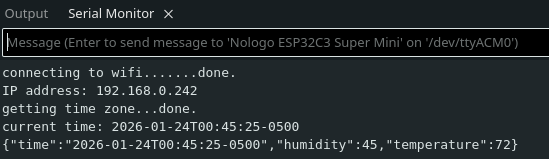
With the board plugged in to USB, go ahead and upload it with the Json message. The serial monitor will now show it updating with the current time and zone, and will repeat the message every 2 seconds.
Next Up: MQTT Prep