
Google Gemini
NoteOptional Step
Not everyone has a Google account. Not everyone likes Google or Gemini. But for purposes of the class, we will be taking advantage of Gemini’s ability to create HTML pages that can link to other sites directly from the Gemini chat context. Most other providers block this feature.
If you can’t or don’t want to use it, code used in the last step can be generated from other AI providers or simply copied from the example code offered.
Open Google Gemini (link opens in new tab)
Since we want code generated, Click the Tools dropdown and select Canvas.
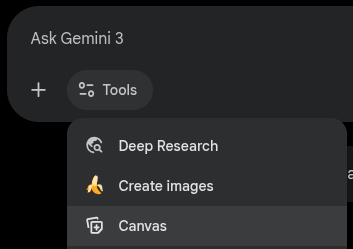
Selecting Canvas The model you want is up to you, but Thinking is suggested for fast code generation.
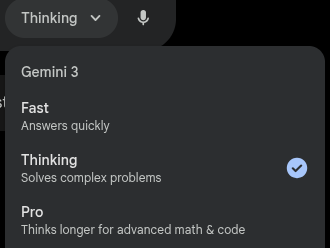
Choosing a Model Give it a descriptive test prompt to see what happens. Here’s an example of one for code:
Generate a single webpage to view iot data for temperature and humidity.

Right now, the page should only display mockup data.

The page should have:
* large numbers showing the current values
* a switch to convert between farenheit and celsius
* a line graph showing history of both temperature and humidity
If the page doesn’t appear after the code generates, click on the preview button at the top right.

The Code/Preview Switch
It’s a dice roll of what you might get, but it should show something like what want to create later on.
Next Up: Let’s Put It Together.